
The contents of this article highlight solutions known to solve issues where the inMusic Software Center fails to open/launch on Windows 10/11 operating systems.
TABLE OF CONTENTS
- Windows Updates
- Error: Installation has failed
- Reinstallation
- Temporarily Uninstall Antivirus/Firewall
- Configure a default browser
- Disable Bluetooth settings
- Graphics Card Conflict
- Display Resolution / Screen Refresh Rate
- Corrupt Library
Windows Updates
In the event of an outdated system registry, please perform the available updates for your build of Windows.
If you're not sure how to update your build of Windows, see this guide from Microsoft.
Error: Installation has failed
Users who receive an error stating 'Installation has failed' may experience an outdated build of Microsoft Visual C++ Redistributable Packages.
It's important to ensure you have installed the latest build of Microsoft's Redistributable Packages - Download and install the latest versions from Microsoft's site.
Reinstallation
Proceed with reinstalling the inMusic Software Center Application - Visit THIS hyperlink to obtain the latest build for Windows.
Temporarily Uninstall Antivirus/Firewall
Users with third-party antivirus or firewall software installed on their systems, such as AVG, AVAST, BitDefender, or Malwarebytes, may experience issues with the inMusic Software Center not launching.
Please temporarily uninstall these via the manufacturer's dedicated uninstaller to ensure any deeper system blocks are removed before attempting to run the inMusic Software Center.
Please only use the manufacturer's uninstaller rather than the Add or Remove Programs feature in Windows.
Configure a default browser
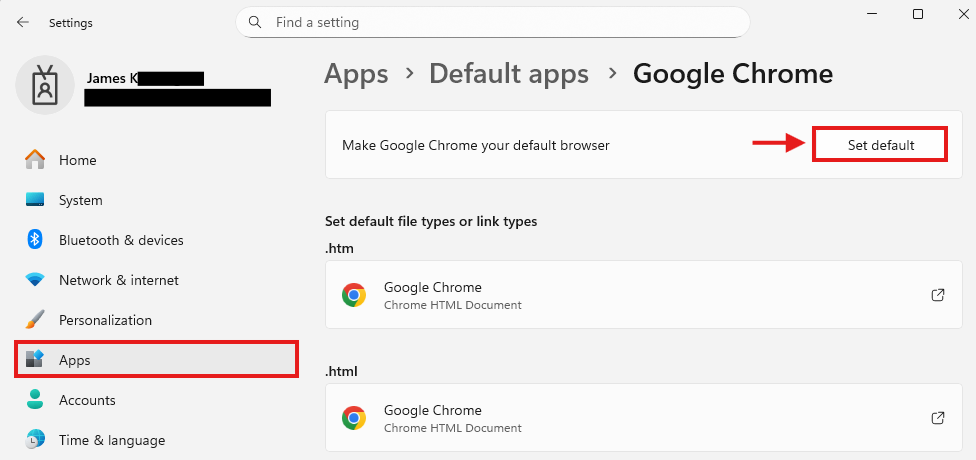
Some users may find that the application launches, but the Log In button is unresponsive. Please ensure a default browser is configured in Windows System Settings via the steps below:
- Open Settings
- Go to Apps - > Default Apps
- Search for your installed browser - In this example, Google Chrome
- Select the application
- Under Make Google Chrome your default browser, select Set default
Disable Bluetooth settings
- Press the Windows key + I together to open the Settings app.
- Navigate to Devices -> Bluetooth & other devices.
- On the right side, you can use the “Bluetooth” option to turn on or disable Bluetooth.
- Disable Bluetooth
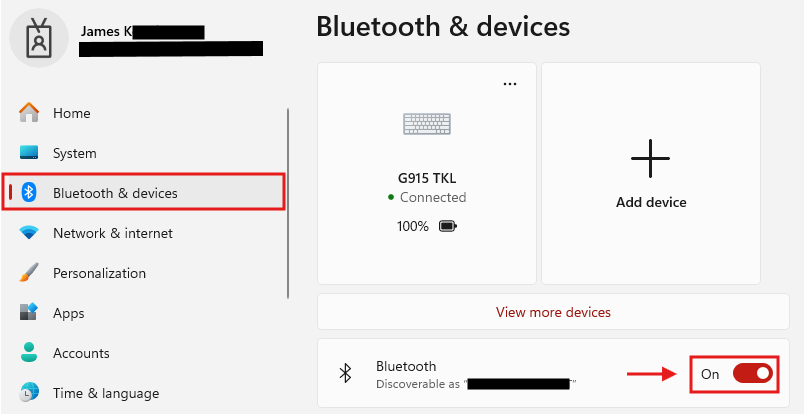
- Disable Bluetooth
- Attempt to launch the inMusic Software Center
Graphics Card Conflict
Your PC's graphics card driver may prevent the inMusic Software Center from launching as expected.
To resolve this...
- Place the inMusic Software Center on your desktop
- Right-click the icon and select Properties.
- In the properties window, select the 'Compatibility' tab
- 'Check / Tick' the box that states 'Run in 640 x 480 resolution' as seen below
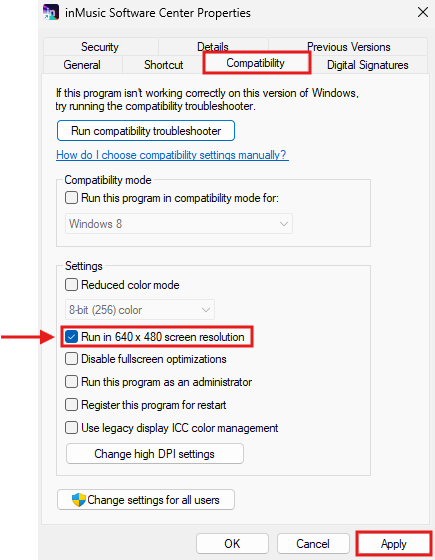
- Click Apply and OK
- Launch the Software Center
- When the program launches, log in to your profile
- Once logged in, close down the Software Center
- Right-click on the Application
- Navigate to the 'Compatibility' tab
- 'Uncheck / Tick' 'Run in 640 x 480 resolution'
- Click Apply and OK
- Launch the inMusic Software Center
- The application should now launch as expected
Display Resolution / Screen Refresh Rate
Some complex display configurations may suffer from this problem. In these cases, adjust the Display Resolution / Screen Refresh Rate. See the steps below to help you re-configure this:
- Right-click on your desktop
- Select 'Display Settings'
- Change the display resolution
- Navigate to Display Resolution (Windows 10) or Scale & Layout (Windows 11)
- Select the recommended/native resolution for your monitor OR select 1920 x 1080
- Change the display refresh rate
- Navigate to 'Advanced Display'
- Reduce refresh rate to 60.06hz or lower
Corrupt Library
Users who have previously installed the inMusic Software Center might be experiencing a corrupted Software Center library.
To solve this issue, refer to the steps below:
The following steps require users to access sensitive data on their computer - Users must perform a backup of their machine to minimize any complications associated with data loss.
If you're not sure how to configure/set up a Windows System Restore Point, see THIS guide from Microsoft.
inMusic Brands is not responsible for issues associated with data loss.
- Show Hidden Files in Windows
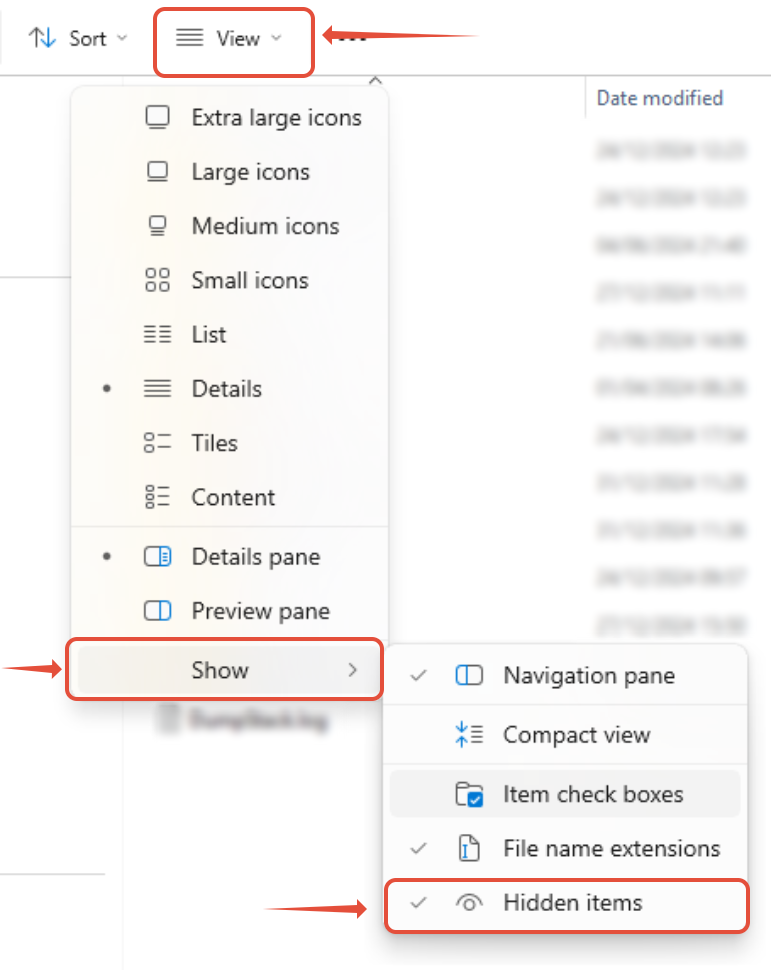
- Open File Explorer
- Click the 'View' tab
- Navigate to 'Show' and click 'Hidden items'
- Navigate to the following directories on your computer:
- C:\Users\USERNAME\AppData\Local
- C:\Users\USERNAME\AppData\Roaming
- Locate the Folders: inmusic_software_center & inMusicBrands

- Delete these folders from both directories:
- C:\Users\USERNAME\AppData\Local
- C:\Users\USERNAME\AppData\Roaming
- Empty your Recycle bin
- Restart your computer
- Re-download / Install the latest version of the inMusic Software Center
- Launch inMusic Software Center
Questions? Concerns? Feedback? If you are still having trouble, please use the New Support Ticket button at the top to contact our support team for further assistance.
Was this article helpful?
That’s Great!
Thank you for your feedback
Sorry! We couldn't be helpful
Thank you for your feedback
Feedback sent
We appreciate your effort and will try to fix the article